

User Actions
This section describes common user-facing actions in the Cube AI UI, including authentication, account verification, password management, and profile-related operations.
Login
Login purpose
Authenticate to Cube AI using an email and password.
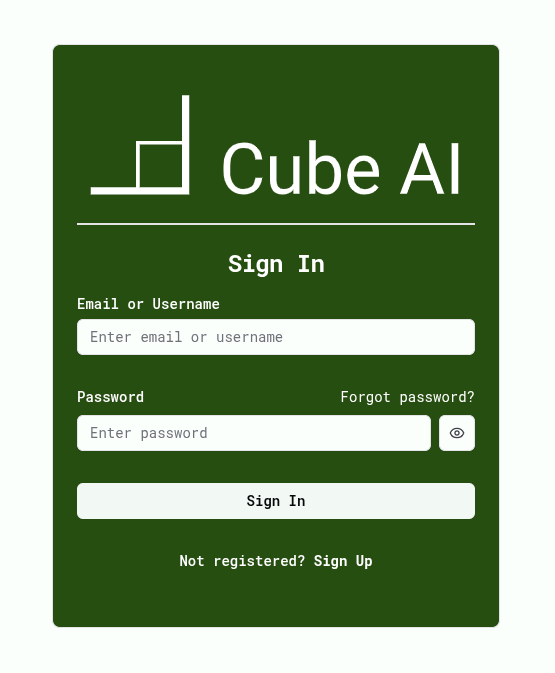
Login location in the UI
Login page.
Login steps
- Open the Cube AI UI.
- Enter your email address and password.
- Click Sign in.
Login expected result
You are authenticated and redirected to the dashboard or your last active domain.
Sign up
Sign up purpose
Create a new Cube AI user account.
Sign up steps
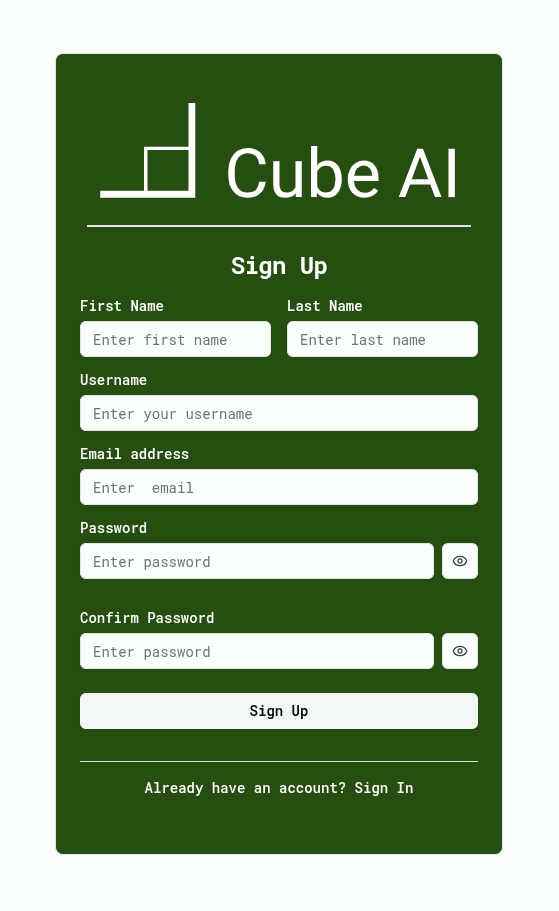
- Open the Cube AI UI.
- Click Sign up.
- Enter your email address and password.
- Submit the registration form.
Sign up expected result
A new account is created and a verification email is sent.
Account verification
Account verification purpose
Verify ownership of the email address associated with a user account.
How it works
After registration, Cube AI may send a verification email containing a secure link, depending on the deployment configuration.
Account verification steps
- Open the verification email.
- Click the verification link.
- Return to the Cube AI UI.
Account verification expected result
The account is marked as verified and full access is enabled.
Password reset
Password reset purpose
Regain access to an account if the password is forgotten.
Password reset location in the UI
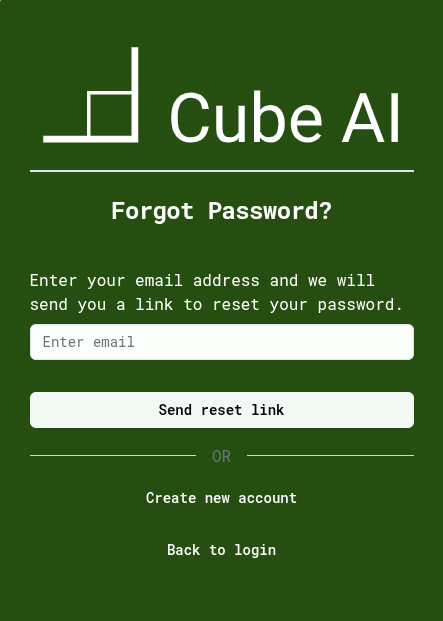
Login page → Forgot password.
Password reset steps
- Click Forgot password on the login page.
- Enter your email address.
- Click Send reset link.
- Open the password reset email.
- Click the reset link.
- Enter a new password.
- Confirm the new password.
- Submit the form.
Password reset expected result
The password is successfully updated and the user can log in using the new password.
Note: The password reset form is accessed through the secure link sent to the registered email address.
Change password
Change password purpose
Update the account password while logged in.
Change password location in the UI
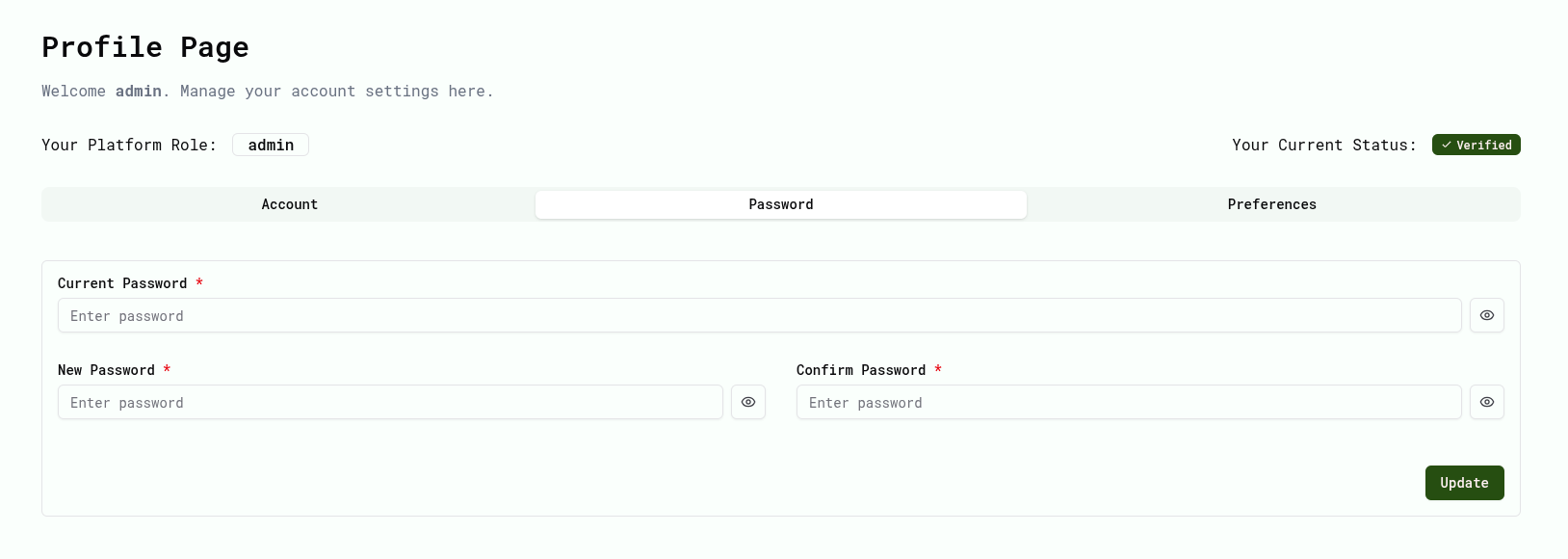
Profile page → Password tab.
Change password steps
- Open the user profile page.
- Navigate to the Password section.
- Enter your current password.
- Enter and confirm the new password.
- Click Update.
Change password expected result
The password is updated successfully and applies immediately.
Profile management
Profile management purpose
Manage personal account settings.
Profile management how to access
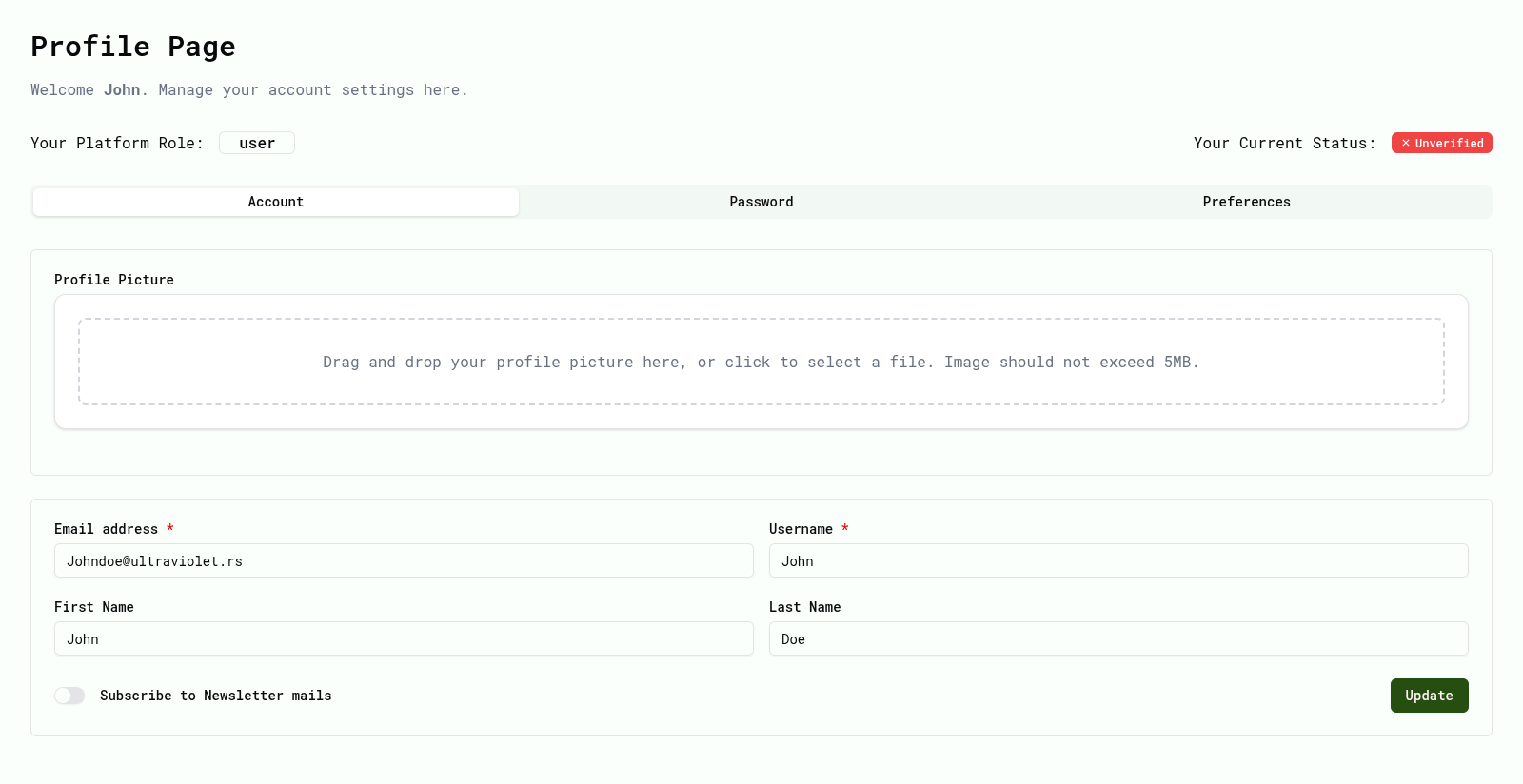
After logging in, users can access profile-related actions from the user menu in the UI (typically available via the user icon).
Profile management available actions
Depending on configuration and permissions, users may be able to:
- View their account information
- Update personal details
- Change their password
- View account verification status
- Log out of the application
Profile actions affect only the user account and do not modify domain membership or role assignments.
Logout
Logout purpose
End the current authenticated session.
Logout steps
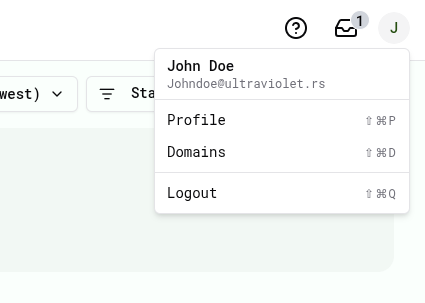
- Open the user menu.
- Click Log out.
Logout expected result
The session is terminated and the user is redirected to the login page.