

UI Concepts Overview
The Cube AI user interface provides a web-based environment for interacting with large language models, managing domains, and performing user and domain-scoped operations.
This section provides both a conceptual overview and a visual walkthrough of the Cube AI UI.
UI Structure
The Cube AI UI is organized around a few core concepts:
- Authentication – users log in using their credentials
- Domains – isolated workspaces that define execution context
- Navigation – domain-scoped features available through the sidebar
- Actions – operations performed within the UI based on permissions
All interactions occur either:
- Before selecting a domain (authentication phase), or
- Within the context of an active domain (domain phase)
Authentication Flow
Users begin by accessing the Cube AI login screen.
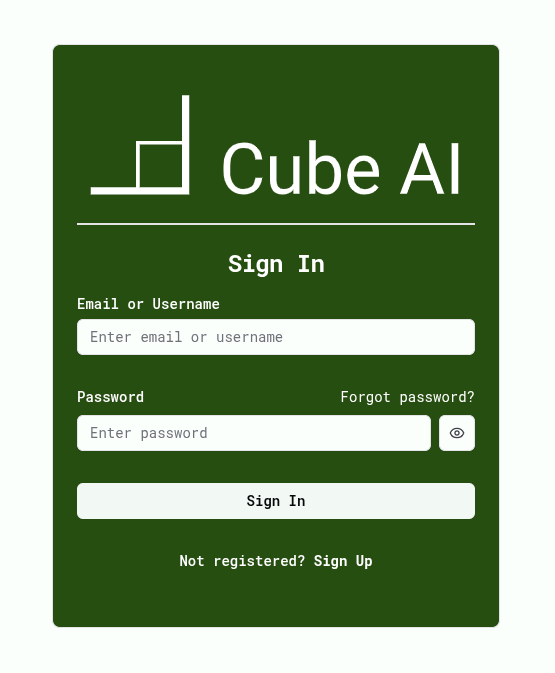
After successful authentication:
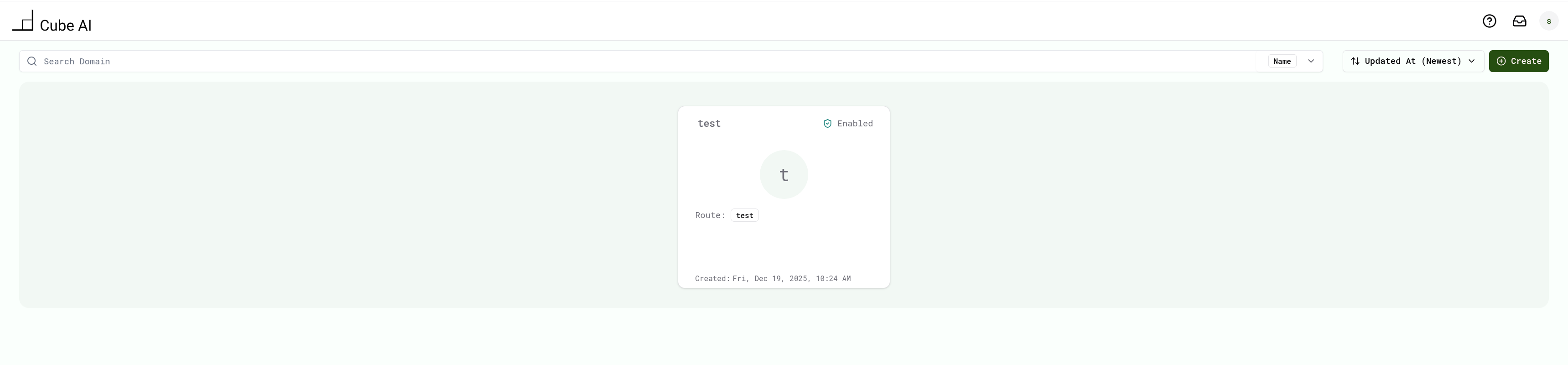
- The user is redirected to the dashboard
- Available domains are displayed
- The user selects or creates a domain to continue
Account-related actions such as sign up, verification, password reset, and profile management are documented in:
Domain-Centric Navigation
Once a domain is opened, the UI switches into domain context.
Within this context:
- All visible resources belong to the active domain
- Available models and services are scoped to the domain
- Visible actions depend on the user's assigned role
Switching domains updates the entire UI context accordingly.
For detailed domain workflows, see:
👉 Domains
Models and Inference
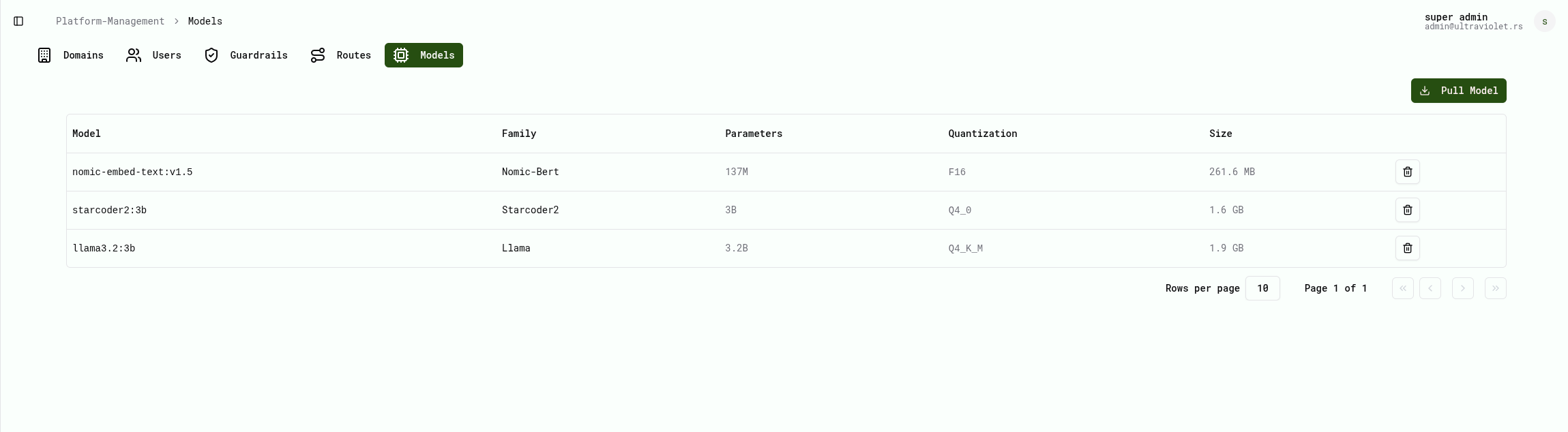
Models are scoped to the selected domain.
Users can interact with models directly from the Chat interface. The list of available models reflects what is enabled in the active domain.
Tokens (API Access)
The Tokens section allows users to:
- Create Personal Access Tokens (PATs)
- Define token duration and scopes
- Revoke existing tokens
- Copy tokens for API and tool usage
Tokens are required for API access and external integrations.

Chat Interface
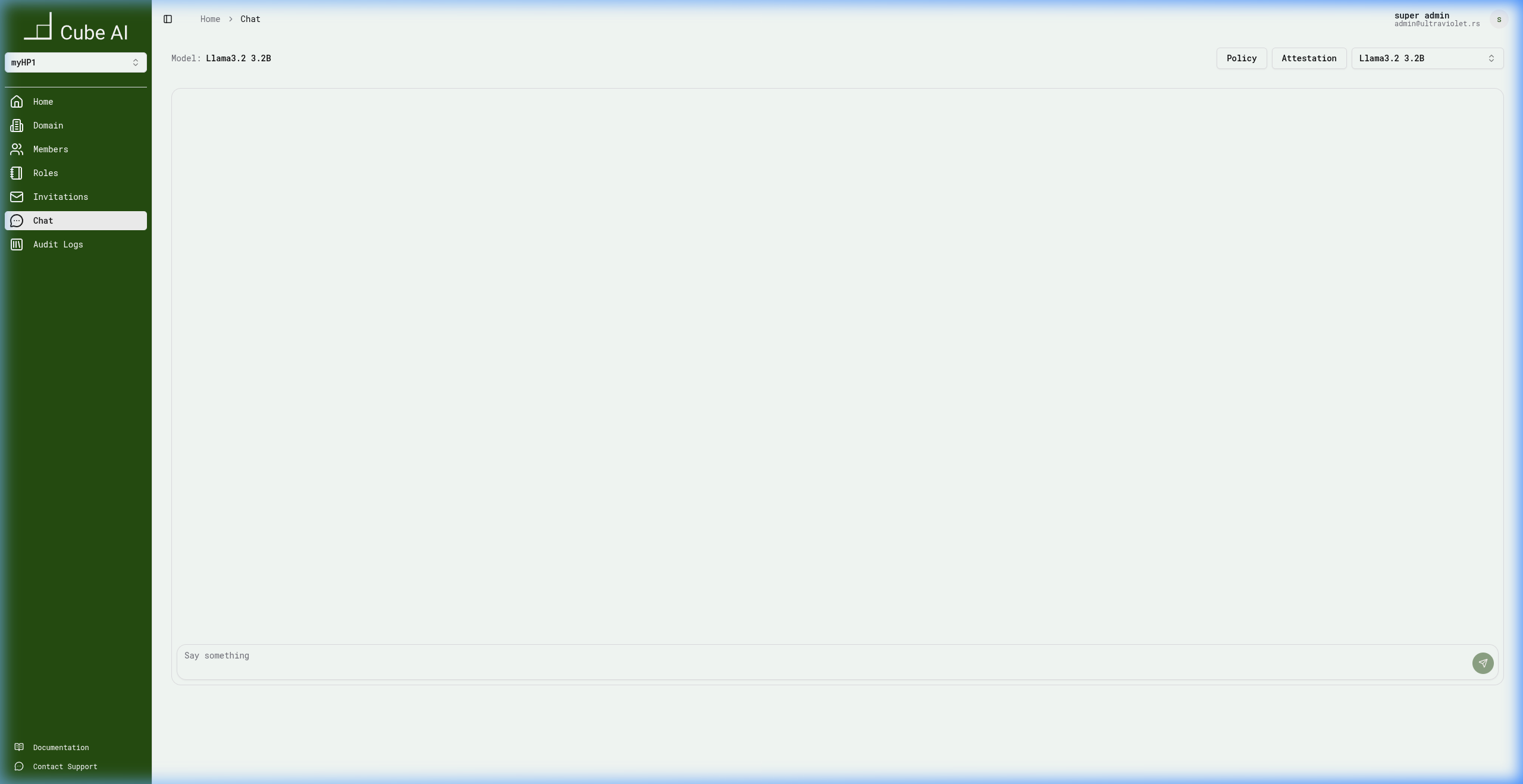
The UI provides interactive access to language models through a chat interface.
Users can:
- Select a model from available domain models
- Send prompts and receive responses
- Switch models dynamically
- Execute inference inside a Trusted Execution Environment (TEE), if enabled
Responses are domain-isolated and follow the security policies of the active domain.
Roles and Permissions
Access to UI features is controlled by role-based permissions.
Depending on their assigned role within a domain, users may be able to:
- Create or manage domains
- Invite or manage other users
- Access administrative features
- View audit logs
- Perform secure model operations
For details, see:
Security and Auditing
Cube AI provides visibility into security-relevant actions through audit logs.
Audit logs help track:
- User activity
- Domain-level changes
- Role and membership updates
- Secure model interactions (including TEE-based workloads)
For more details:
Typical User Workflow
A common end-to-end workflow looks like this:
- Log in to the UI
- Select or create a domain
- Select an available model
- Create a Personal Access Token (if API access is needed)
- Interact with the model via Chat or API
Developer-Focused UI Documentation
This section focuses on user-facing UI behavior.
Developer-oriented documentation related to UI integration and customization, including the Chat UI and backend configuration, is available in:
👉 Chat UI
Next Steps
To continue exploring Cube AI:
- Start with Domains
- Review User Actions
- Explore the Security & Access section