

Chat UI
Chat UI
Cube AI ships with a built-in chat interface that replaces the previous Open Web UI integration. Developers can use this chat to test models, inspect responses, and debug latency and token usage directly from the Cube AI UI.
Accessing the Chat UI
- Log in to Cube AI.
- Select a Domain (or create one if needed).
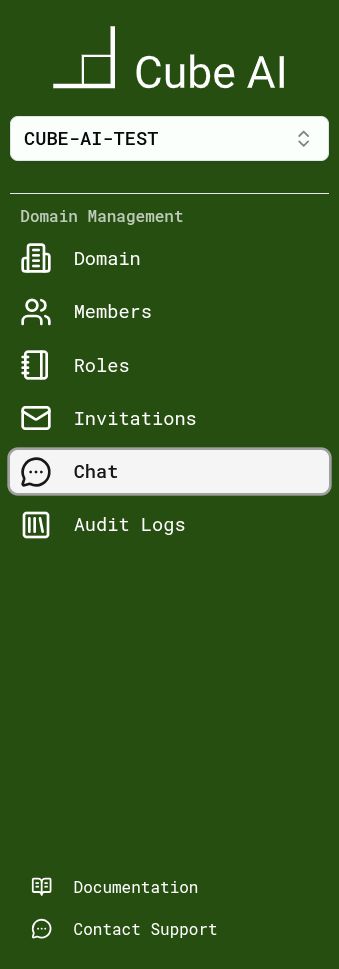
- In the left sidebar, click Chat.
Chat UI Overview
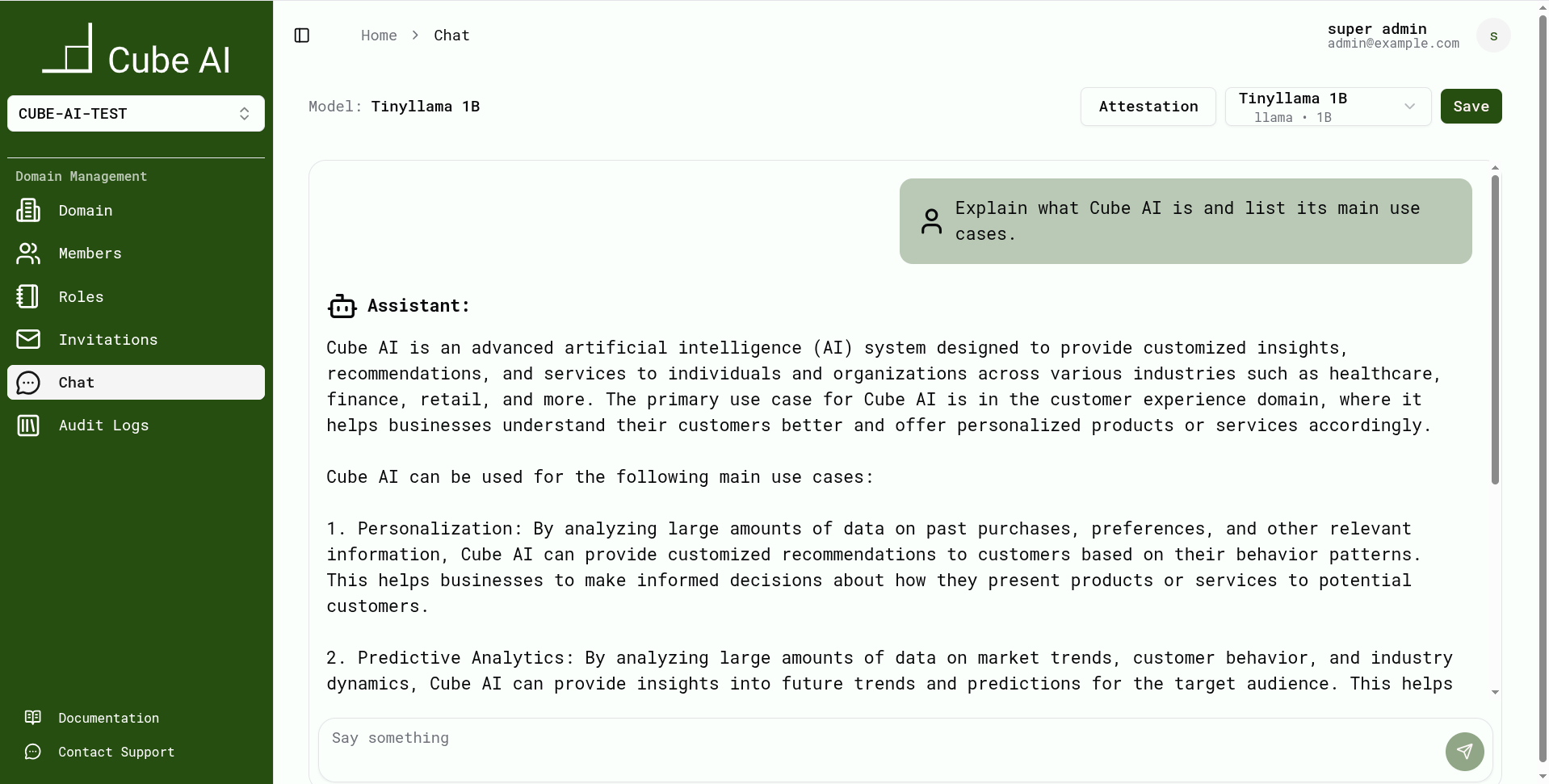
The chat page includes:
- A message history between you and the model
- A message input box at the bottom
- A model selector dropdown at the top
You can use it for general interaction, debugging prompts, testing system instructions, or evaluating model behavior.
Switching Models
The top bar contains the Model Selector, which allows you to choose any model available in your current domain.
Workflow:
- Open the model dropdown
- Select a model (Qwen, Mistral, TinyLlama, etc.)
- Send a prompt to compare responses and performance

Sending Test Prompts
The chat UI is ideal for quickly testing:
- Prompt quality
- System prompt effects
- Code generation and refactoring
- Long-context performance (model-dependent)
Example prompts:
Explain what this function does and suggest improvements.Generate unit tests for this TypeScript module using Jest.Debug Information (Latency & Tokens)
When enabled, the chat shows runtime performance metrics:
- Total request latency
- Prompt token count
- Completion token count
- Token-per-second throughput
- Model load duration
When to Use the Built-In Chat
Use the Cube AI chat UI when you want to:
- Validate that your domain is working
- Ensure a model loads correctly
- Debug or tune prompts
- Compare model latency or tokenization
- Inspect streaming output
- Avoid using VS Code or external tools during debugging
The built-in chat fully replaces the old Open Web UI integration and is now the preferred way to test and debug LLM inference inside Cube AI.